
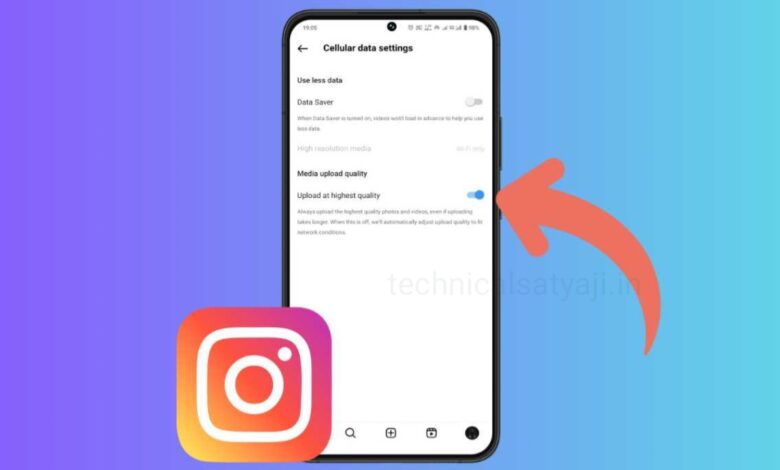
If you want your reels to go viral on Instagram, then it’s crucial that your videos should be in high quality, because Instagram announced that they deprioritize Reels that have low video quality i.e blurry or low resolution. Use high quality videos on Instagram by using good quality camera is the main thing you should remember. But, after using high quality camera, Instagram will reduce the quality of video by compressing it. Instagram reduce video quality when uploading Reels because its servers automatically compress and re-encode large files to save storage and ensure smooth playback. Go through this article and know how you can upload a high quality videos on Instagram.
Why Instagram Compress Video to Low Quality while Uploading?
- Automatic Downscaling: Instagram standardizes playback by compressing larger files down to a 1080p resolution and lower native frame rates.
- High Bitrate Overload: Uploading massive 4K or 60fps files forces the platform’s system to aggressively crush the data, resulting in a blurry or pixelated video.
- Weak Internet Connection: Uploading over mobile data instead of a strong Wi-Fi network can trigger extra compression from the app.
How to Upload High Quality Videos Instagram?
If you don’t want your video to be compressed to low quality, then you can do 3 things by turning on ‘high-quality uploads’ in the settings of Instagram, shoot in 1080p or 4K at 30/60 fps, and use a strong Wi-Fi connection.
Instagram App Settings
- Open Instagram, go to your profile, and tap the three lines menu in the top-right corner.
- Go to Settings, select Data usage and media quality (or Data Usage).
- Toggle ON the ‘Upload at highest quality’ option.
- Make sure your phone’s general data saver or Instagram’s data saver is turned off.
Camera & Editing Settings
- Clean your camera lens with a soft cloth before filming to remove smudges.
- Record your video in 1080p or 4K resolution at 30 fps or 60 fps.
- Export your final video edits in an MP4 format with an aspect ratio of 9:16 (1080px by 1920px).
Upload Process
Even with the settings toggled on, Instagram can occasionally disable high-quality uploads depending on your immediate upload environment.
- Use Strong Wi-Fi: Always upload over a fast, stable Wi-Fi connection. If you use mobile data or have a weak connection, Instagram heavily compresses video files for faster processing.
- Double-Check More Options: When you are at the final stage of posting a Reel, scroll down to the bottom of the screen and tap More Options. Make sure the Upload at highest quality toggle is activated there also.
- Wait for Processing: Once uploaded, wait a few minutes for Instagram to fully process the HD version. Sharing it immediately might briefly display a lower-resolution version.
Humbly Request To All Visitors!
If you found above both downloading link expired or broken then please must inform admin by fill this Contact Us! Form